
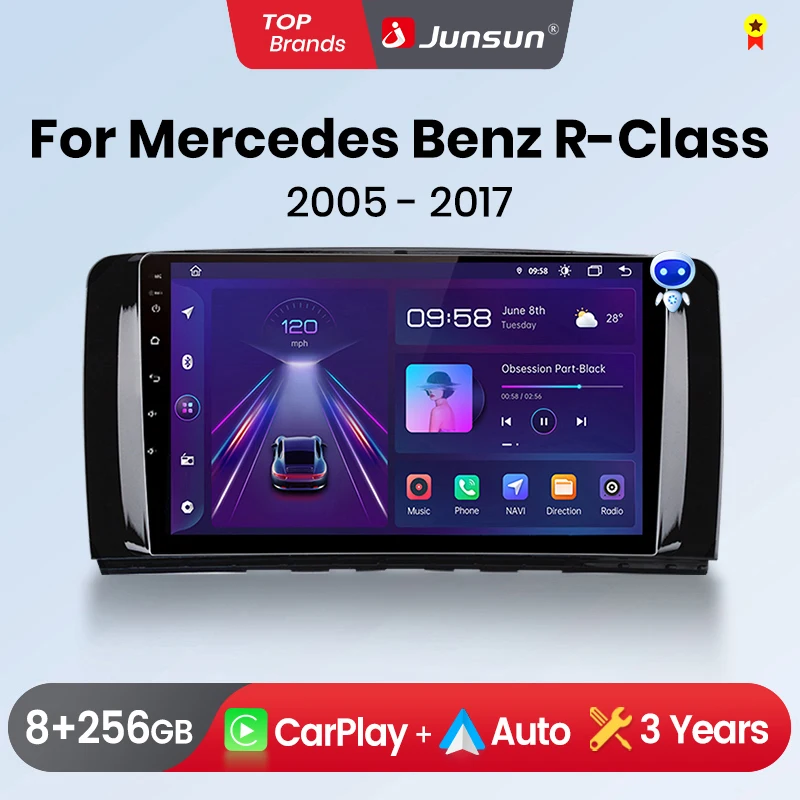
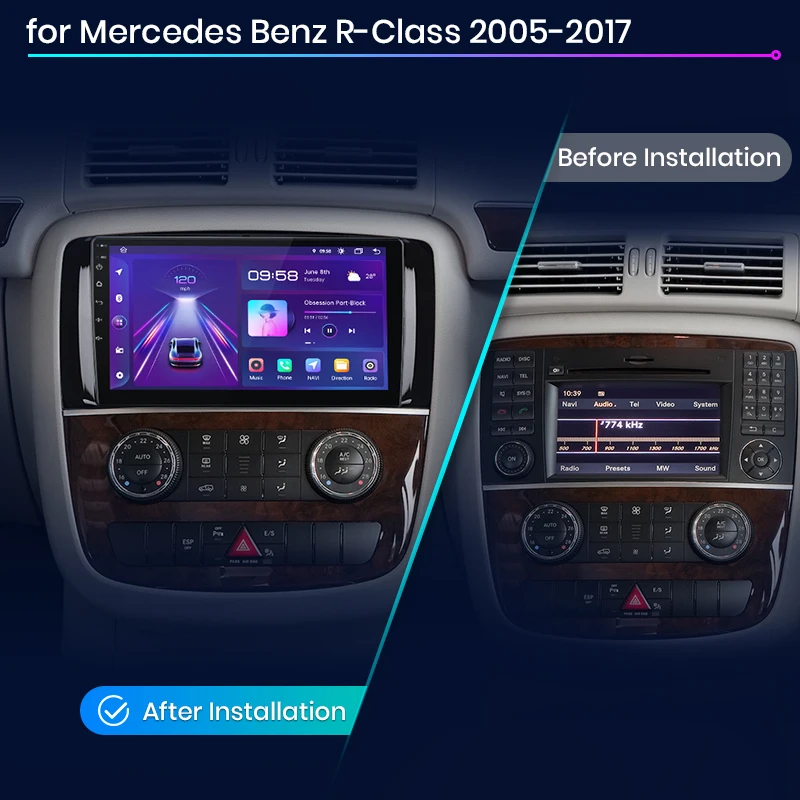
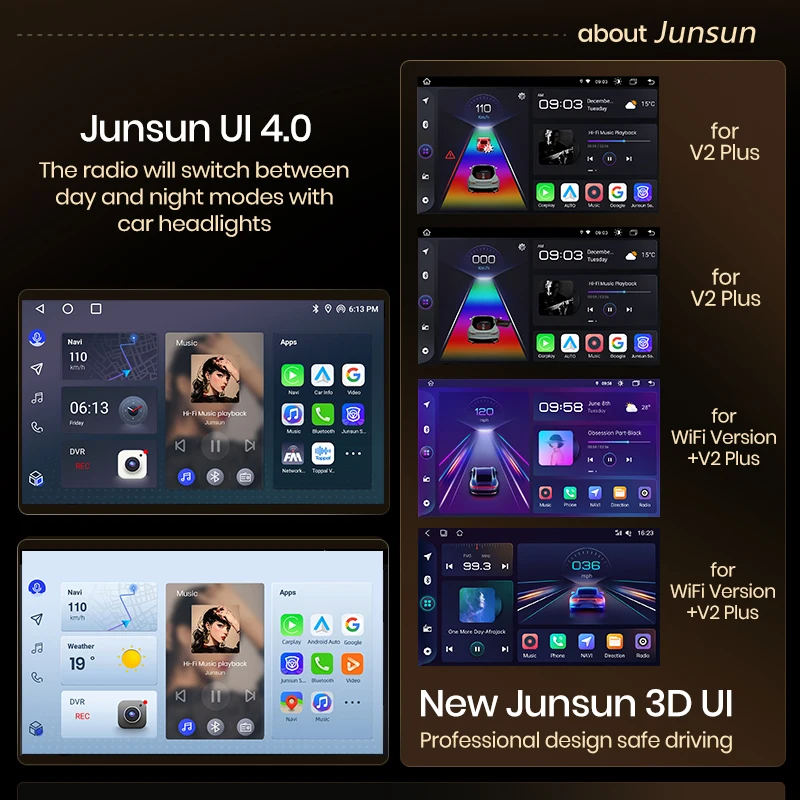

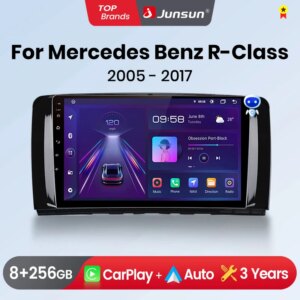
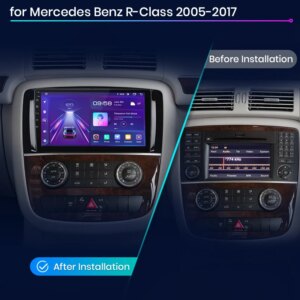
Android Autoradio für Mercedes Benz R Klasse 251 R300 R280 R320 2012-2015 GPS Multimedia 8Core CarPlay
186,99 € – 583,99 €
inkl. MwSt. zzgl. Versandkosten
Android Autoradio für Mercedes Benz R Klasse W251 R300 R280 R320 2012-2015 GPS Multimedia 8Core CarPlay
Lieferzeit: 3-6 Werktage
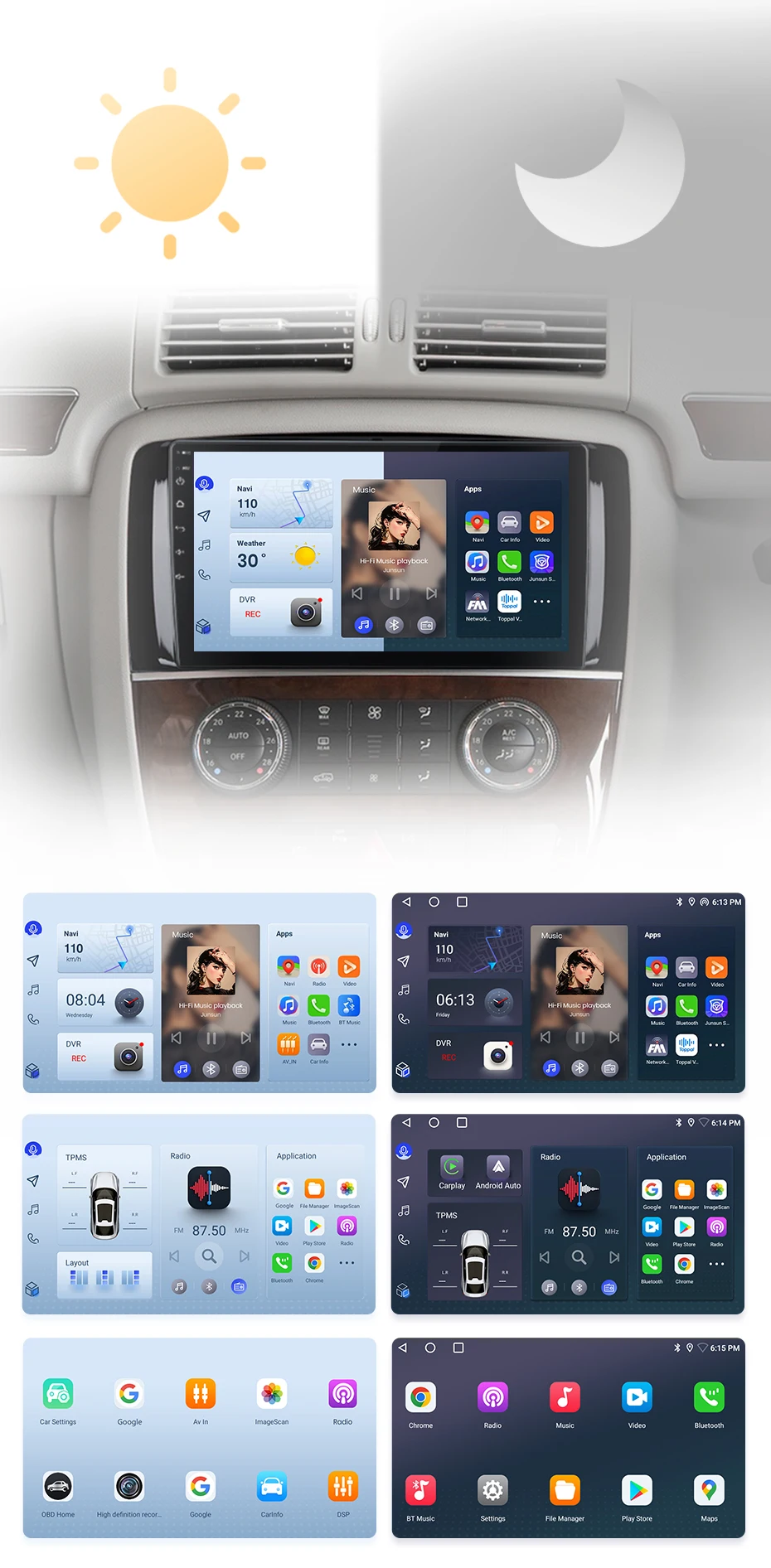
Android Multimedia Autoradio – Modern, Leistungsstark & Vielseitig
Erleben Sie modernes Infotainment für Ihr Fahrzeug! Mit unserem hochwertigen Android Multimedia Autoradio bringen Sie Navigation, Unterhaltung und Konnektivität auf ein neues Level.
Unsere Geräte werden stets mit der neuesten Android-Version ausgeliefert und sind somit technisch auf dem aktuellsten Stand.
Vor dem Versand wird jedes Produkt sorgfältig optimiert und individuell programmiert, um Ihnen die bestmögliche Leistung und ein hervorragendes Preis-Leistungs-Verhältnis zu garantieren.
Link Reifendrucksensor: USB Reifendruck Überwachung Alarmsystem tpms mit 4 internen sensoren für auto dvd player navigation autozubehör – Car-Hifi Braunau
Link DAB: DAB Antenne mit USB-Adapter für Autoradio Android GPS-Signal für DVD-Autozubehör – Car-Hifi Braunau

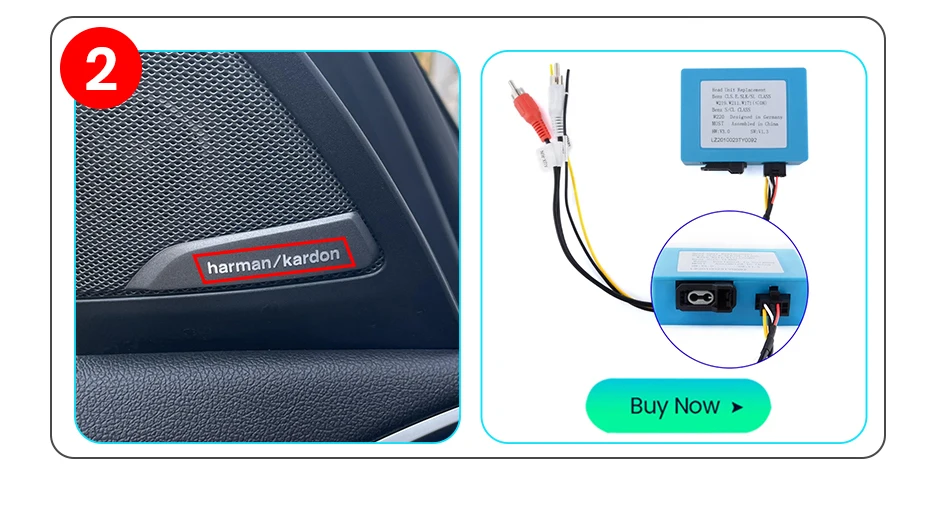
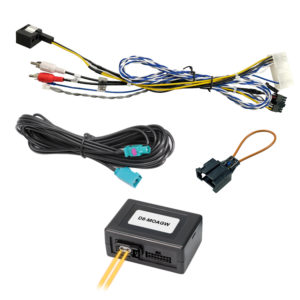
1. The original radio has the optical fiber interface in Figure1. it need an extension cable.
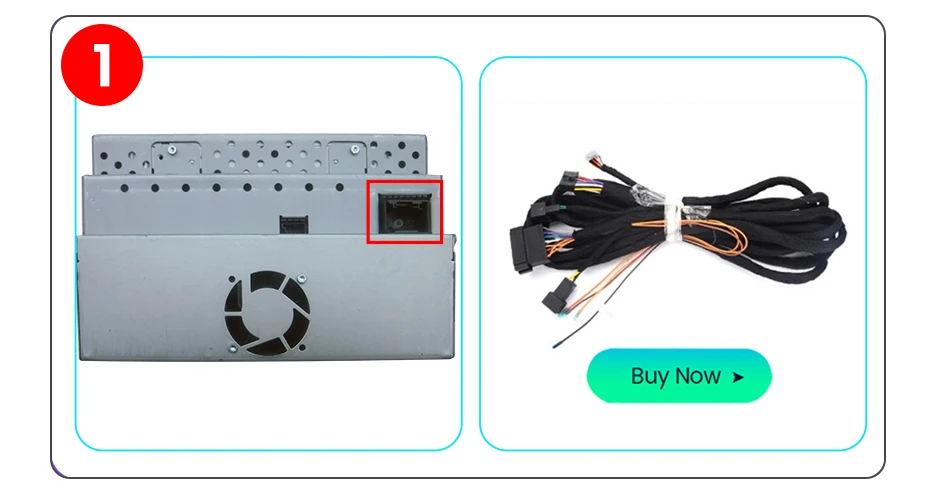
2. Car has a Harman/Kardon system, fiber optic need
Box.

FAQ
1. How to connect the watch view camera?
1) Red cable ② is connected to the backup light „+“
2) Black cable ① is connected to the “GND”
3)The reverse detection cable ④(Brown color) is connected to the red cable ③ which extending from the video output cable, please follow the picture below to connect.
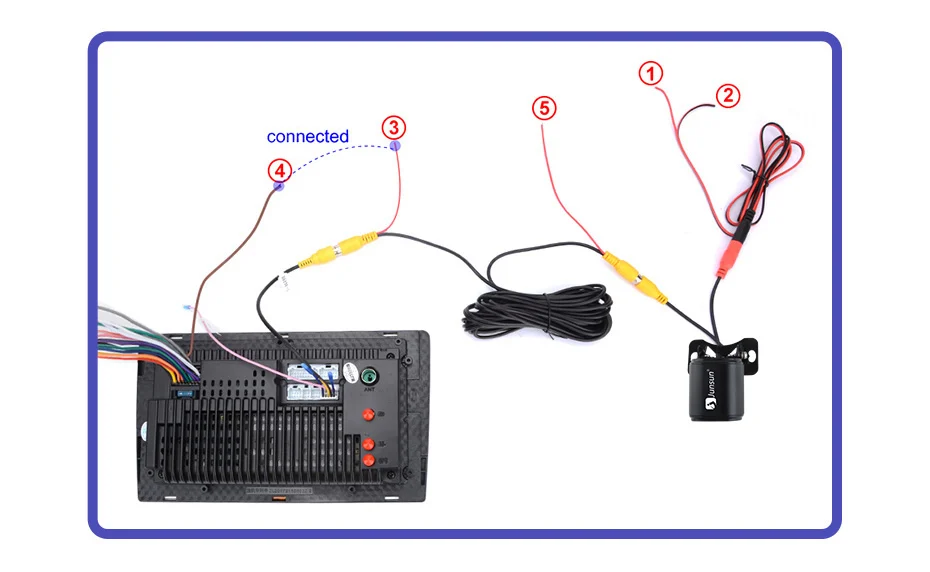
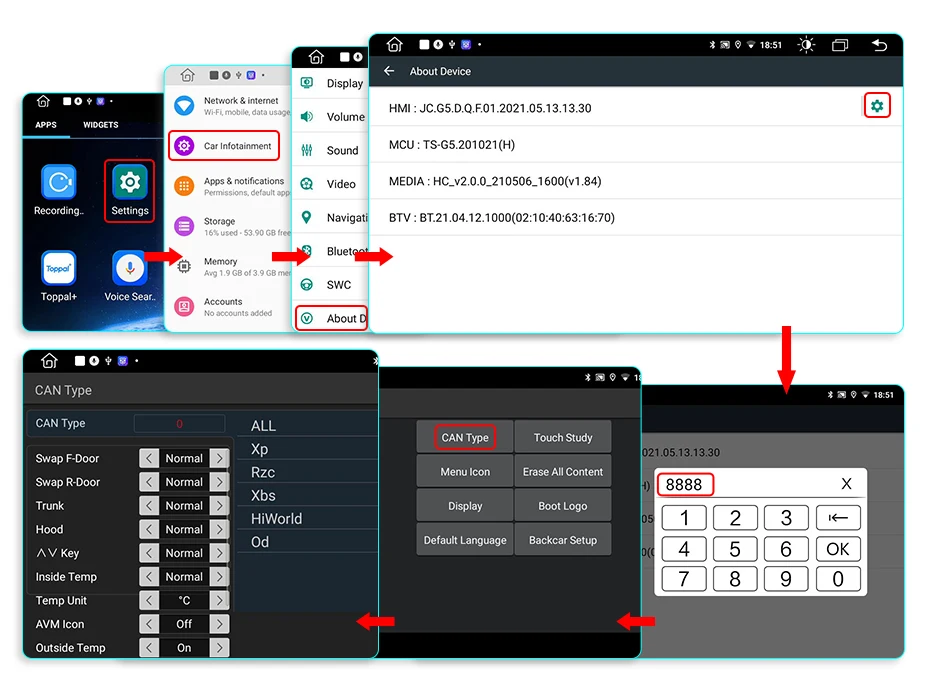
If the screen displays quite normal after V1 PLUS/V2 PLUS Connection, please enter the Factory settings to adjust the camera format, setting-Car Information-About Device-8878-Blackcar Setup-change the CamType /CamFormat to match the camera format;
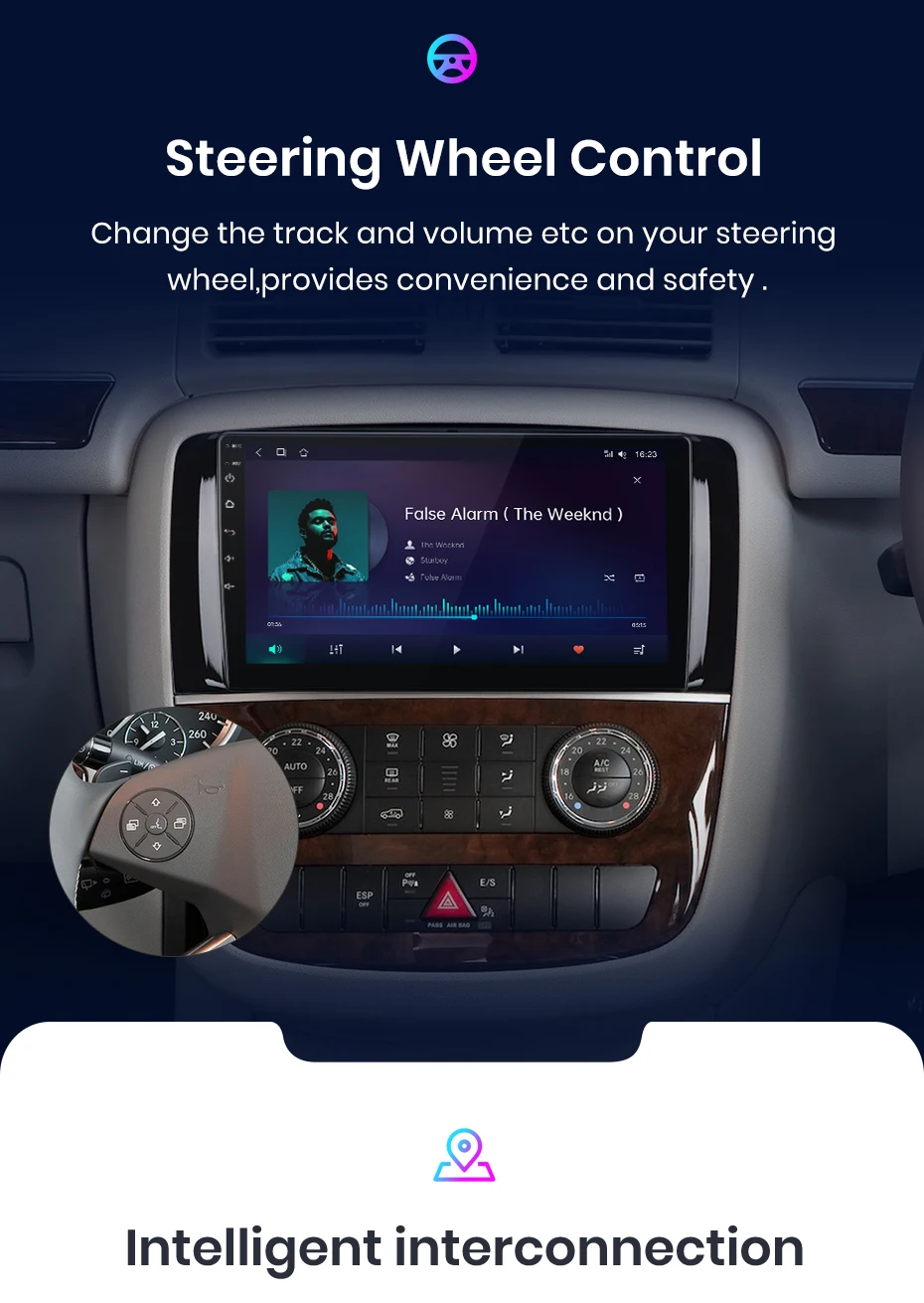
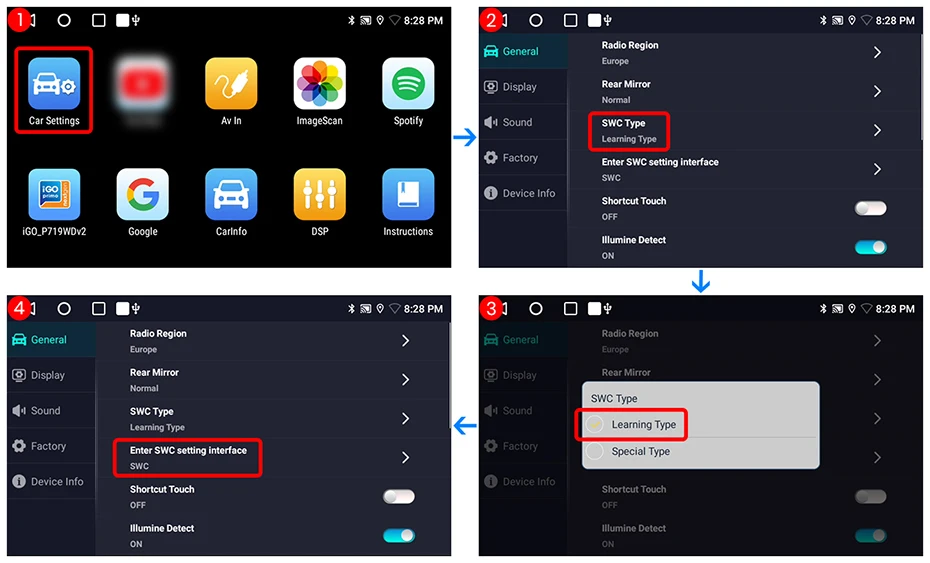
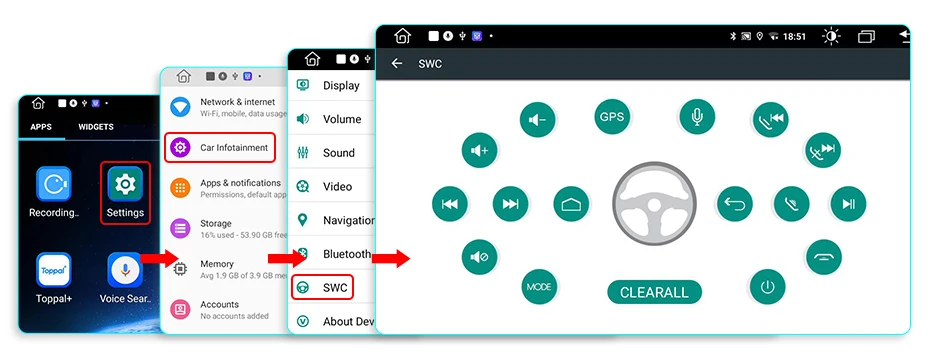
2.How to set steering wheel controls?
Before starting the setup, please confirm that the MANBUS box and 8PIN serial cable are connected to the multimedia !!!
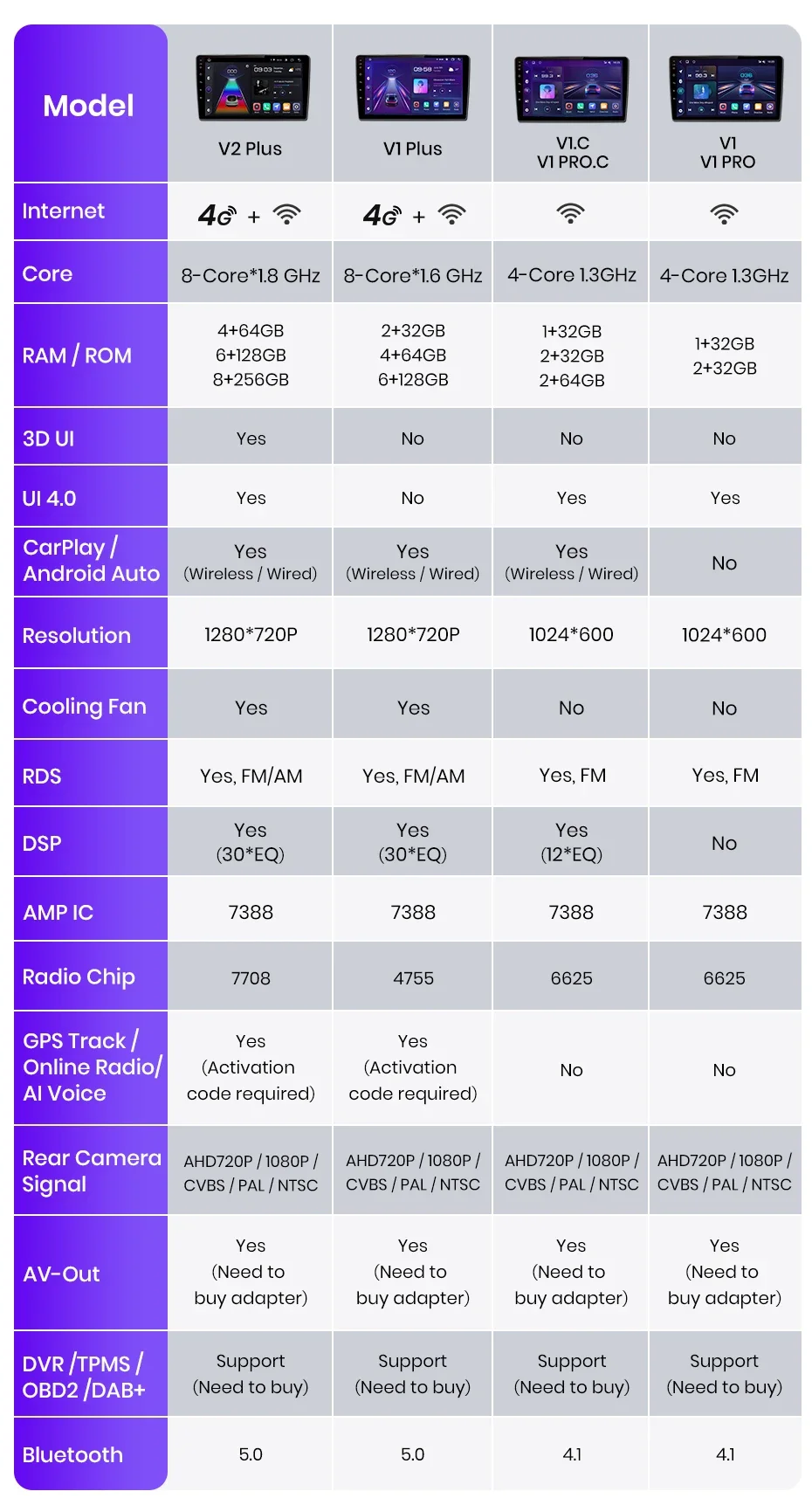
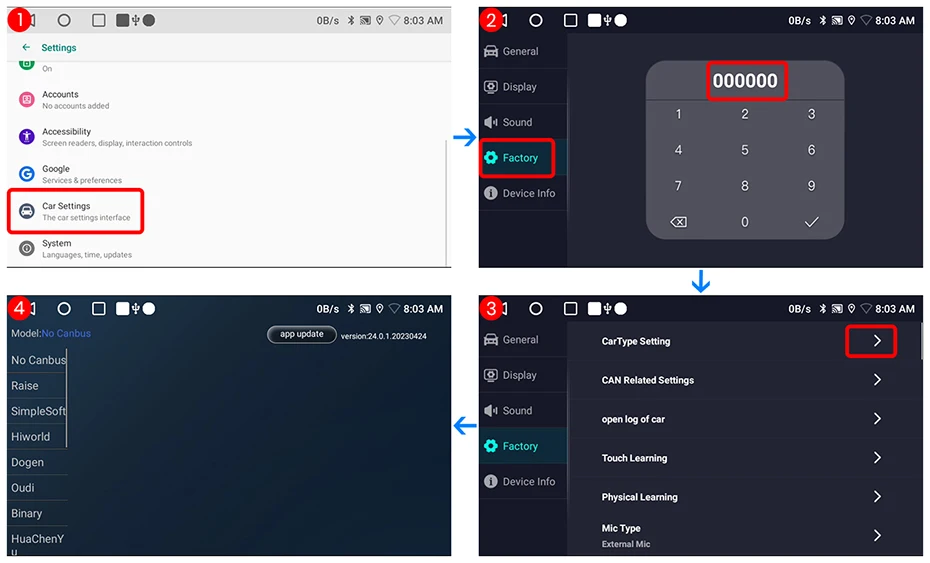
1) There is Canbus in the product, if you bought V1/V1.C/V1 Pro/V1 Pro.C/V1 Plus, please do to the picture to set and choose Oudi-your car model
2) There is Canbus in the product, if you buy V1 Plus/V2 Plus 3D, Please do to the picture to enter the CANbus setting and select 211/32 and save
3) If it is still not available after complete the setting, please refuse to the following figure to complete the learn of the steering wheel buttons
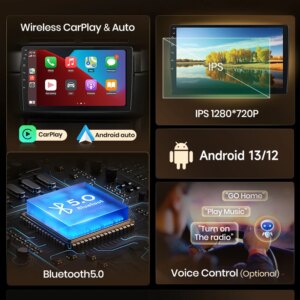
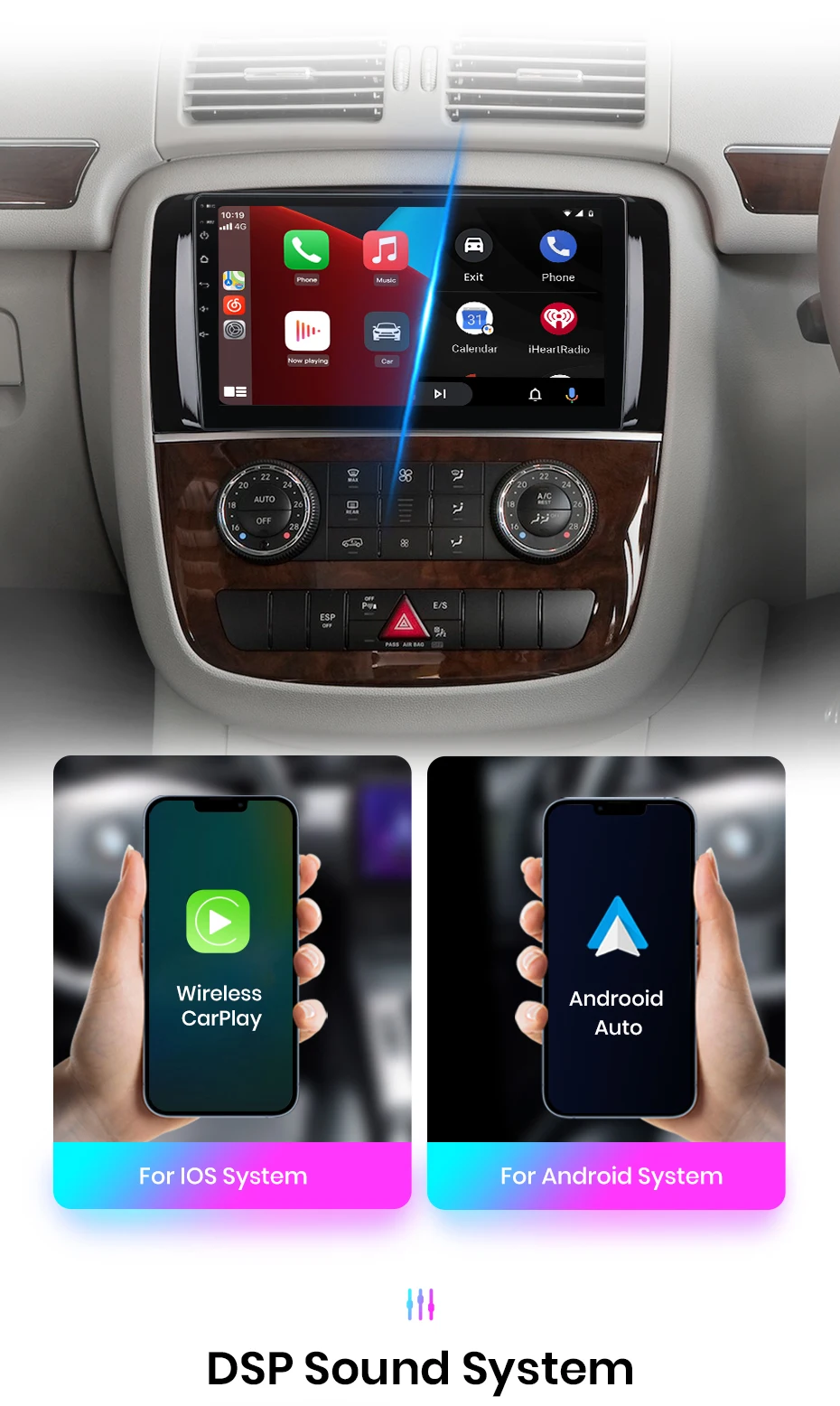
3.How to connect wireless Carplay and Android Auto?
For the first connection, need to turn on the phone’s Bluetooth to peer with the car’s Bluetooth.
After the pairing is successful, the car radio will automatically jump to the Zlink or AutoLink interface
At this time, the phone pop up a prompting message „use CarPlay with Zlink or AutoLink
Then turn on the WiFi of the mobile phone, and the CarPlay will be connected
4.How to connect wired Carplay and Android Auto?
Please use your original data cable to connect the phone to the 4 PIN USB cable, then turn on the Carplay/Android Auto function on your phone and the „AutoLink“ or „ZLink5“ icon on the device to connect.
5.How to change the Boot Logo?
Because of copyright, logo cannot be displayed.If need, please contact Customer Service for methods to modified the logo.
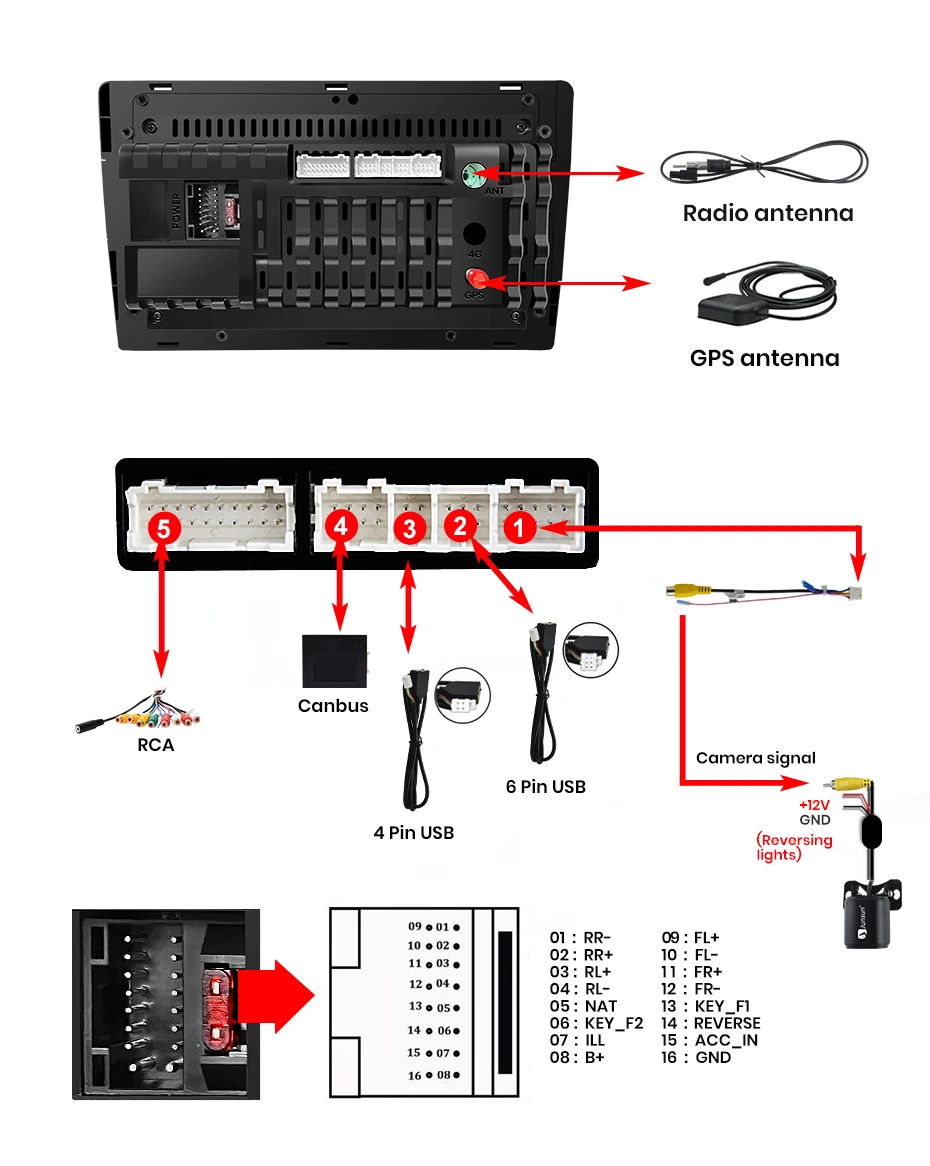
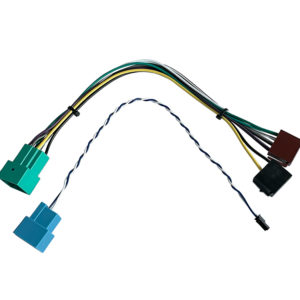
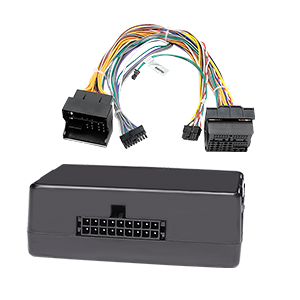
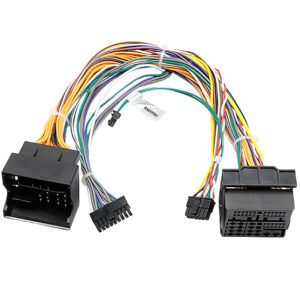
6.This is the cable rental diagram for your Reference
| Gewicht | 30 kg |
|---|---|
| Maße | 20 cm |
| Brand Name | Junsun |
| Display Size | 9" |
| RAM | 1G |
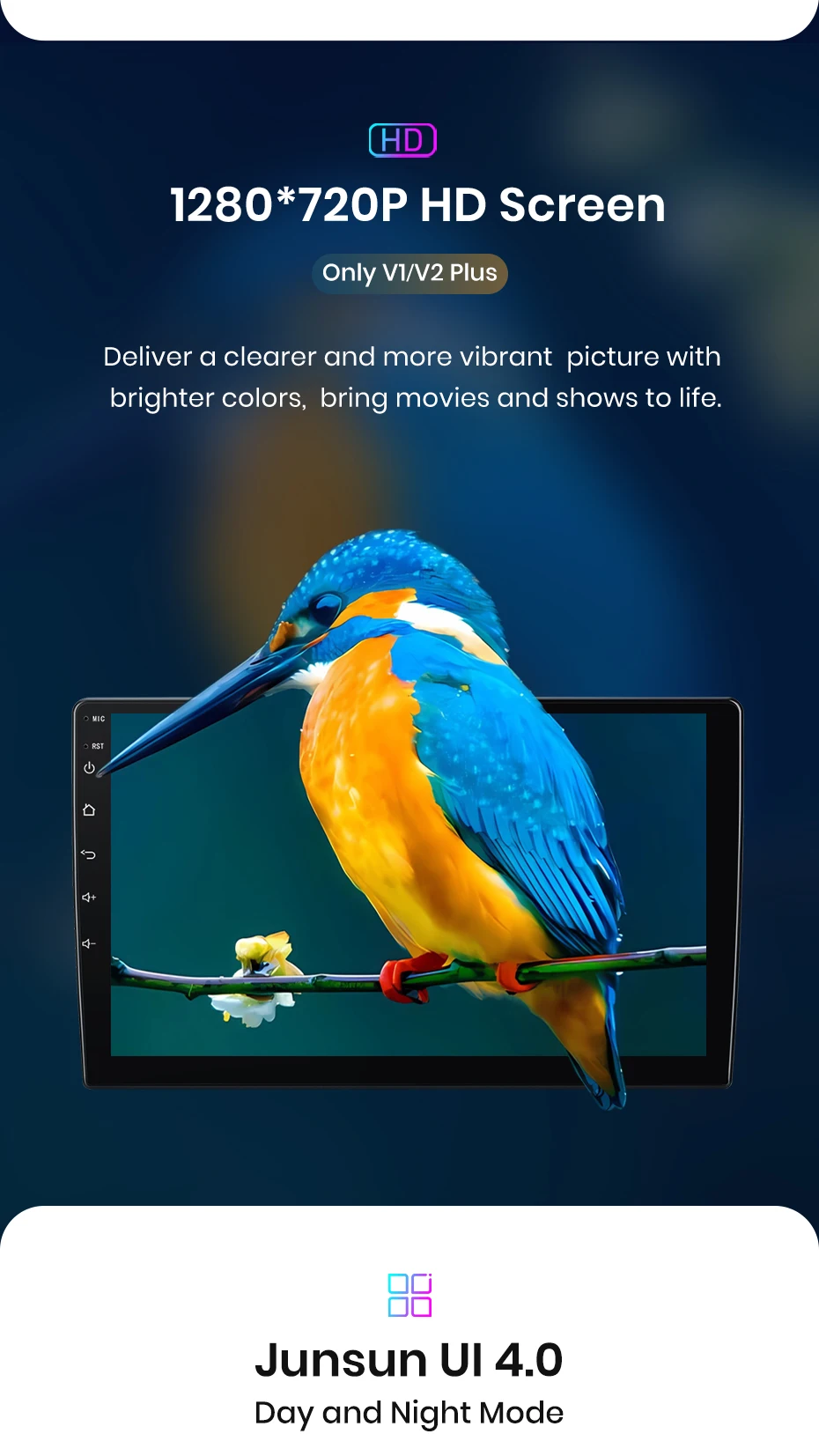
| Resolution | 1280*720P IPS (Optional) |
| For Vehicle Brands/Model | Mercedes-Benz |
| Mercedes-Benz Model | R320 |
| R320-Year | 2009 |
| Interface | USB,RCA |
| OSD Language | VIETNAMEISCH |
| Out Power | 4*45W |
| Processor Type | AMP7388 |
| Max External Memory | 256 g |
| Chipset | MTK8259/8163 (Optional) |
| Category | Combination product |
| Digital Media Format | JPEG |
| Is touch screen | Ja |
| TF/Micro SD Slot | 2 |
| Built-in CD player | Nein |
| ROM | 32G |
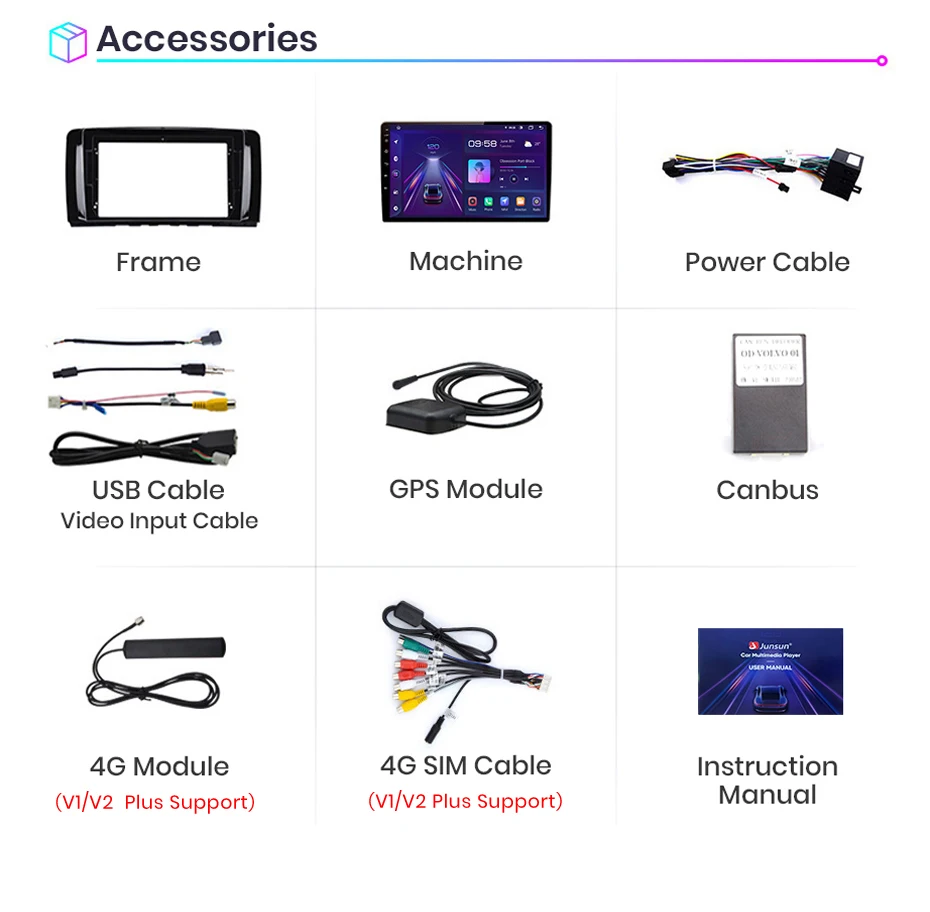
| Accessory Type | Power Cable/USB cable/GPS model/Video cable |
| Certification | KC |
| Origin | CN (Herkunft) |
| Material | Composite |
| Processor Speed | 1.6Ghz |
| Tuner Type | 4745/MT6625N |
| Din | doppeltes Din |
| Special Features | MP3-Player |
| Built-in Screen | Ja |
| Item Size | 9.0 inch |
| Preset Station | Set by your own |
| Operating System | Android 12 |
| Built-in DVD Player | Nein |
| Item Weight | 2.5 |
| Voltage | 12 V |
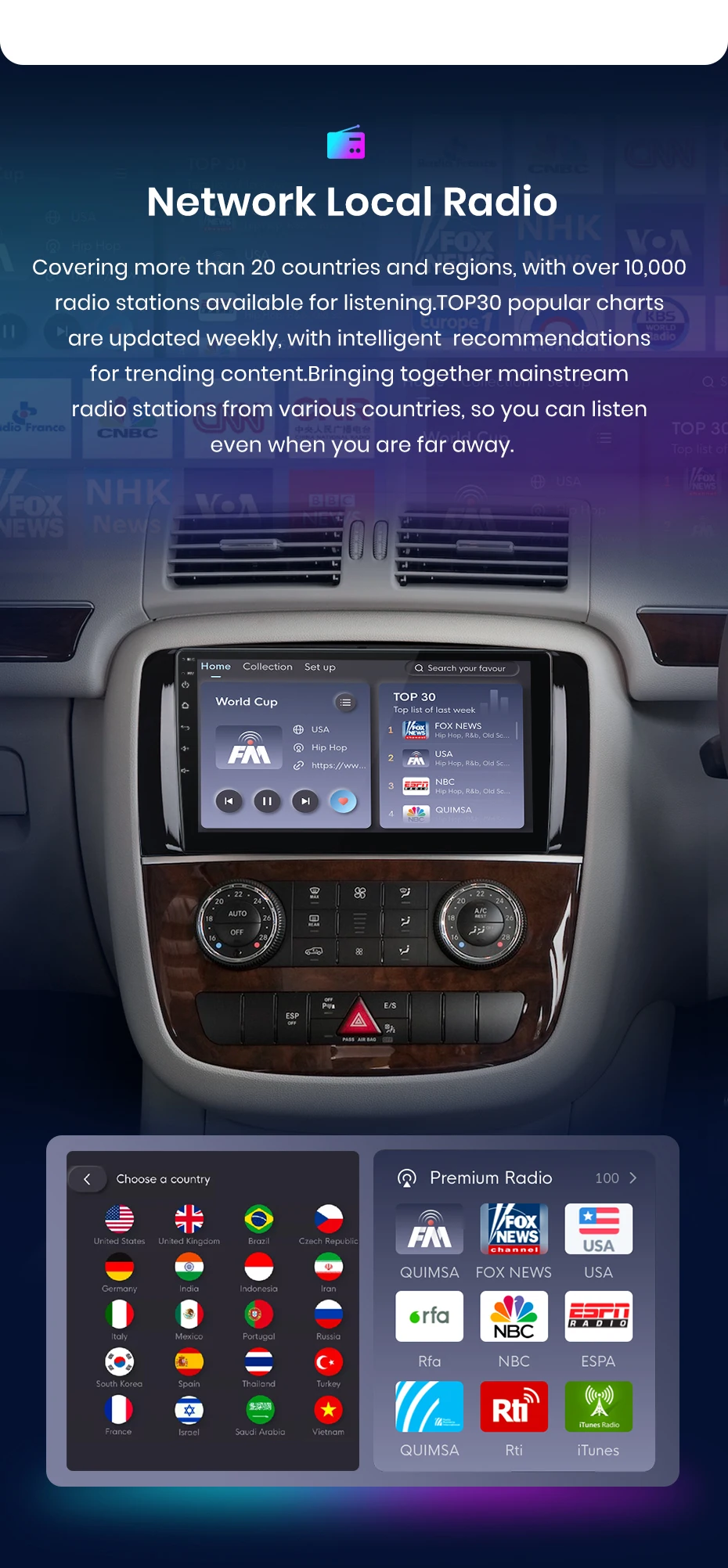
| Online Radio | Search multiple channel (Optional) |
| Control car radio | By "Junsun Online" APP |
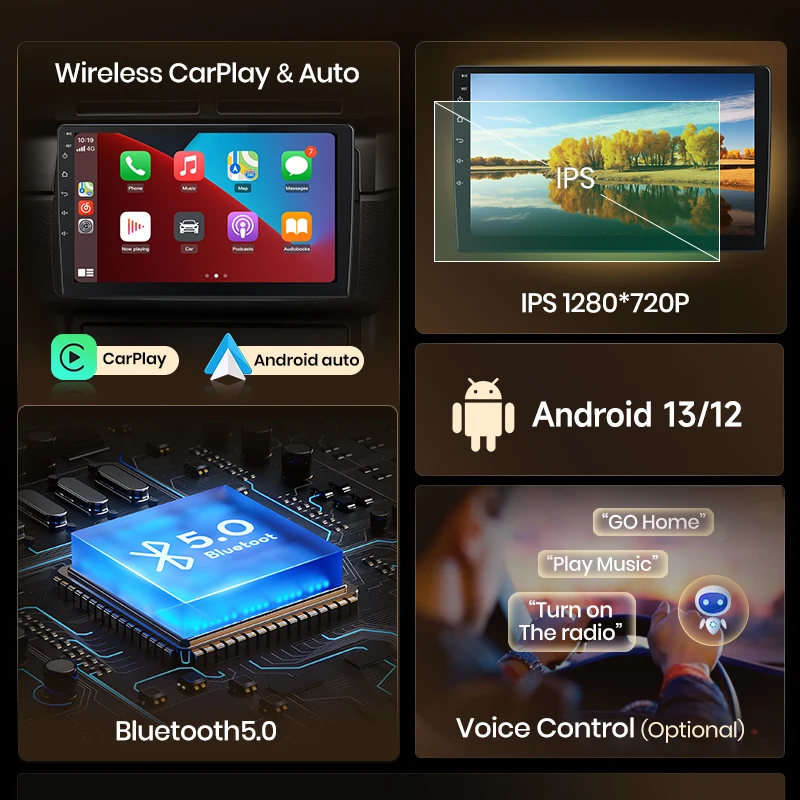
| Wireless Support Android Auto/ CarPlay | Sync phone to Radio (Optional) |
| AI voice control Support | Allow you to make phone calls, navigate, music play… (Optional) |
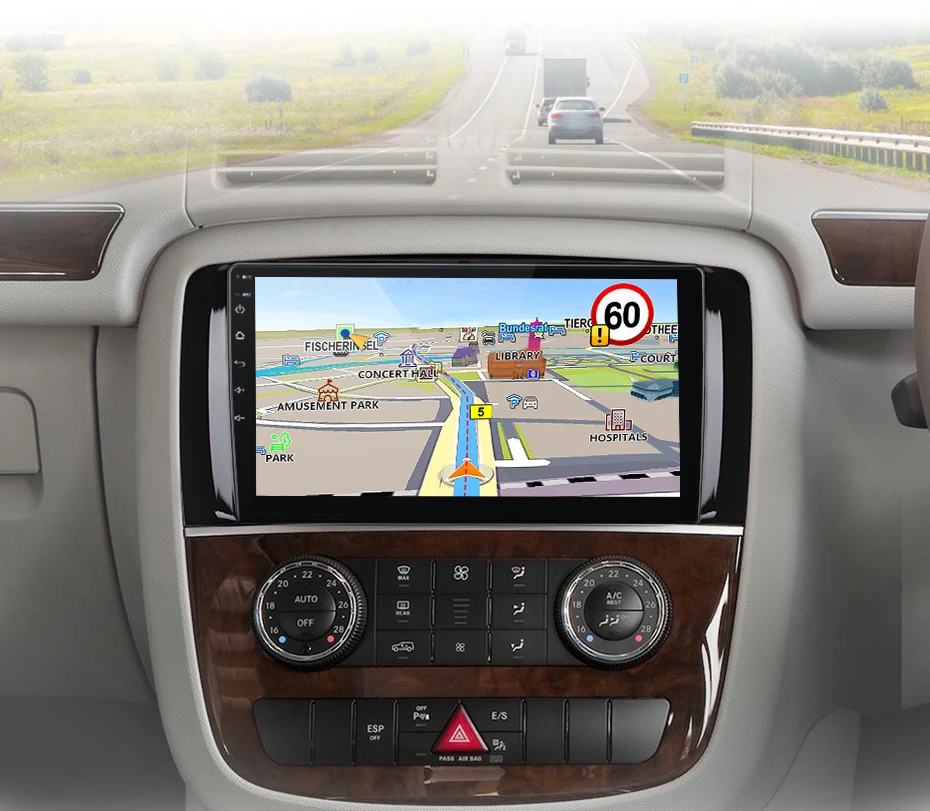
| GPS navigation map | Building-in offline map, free update |
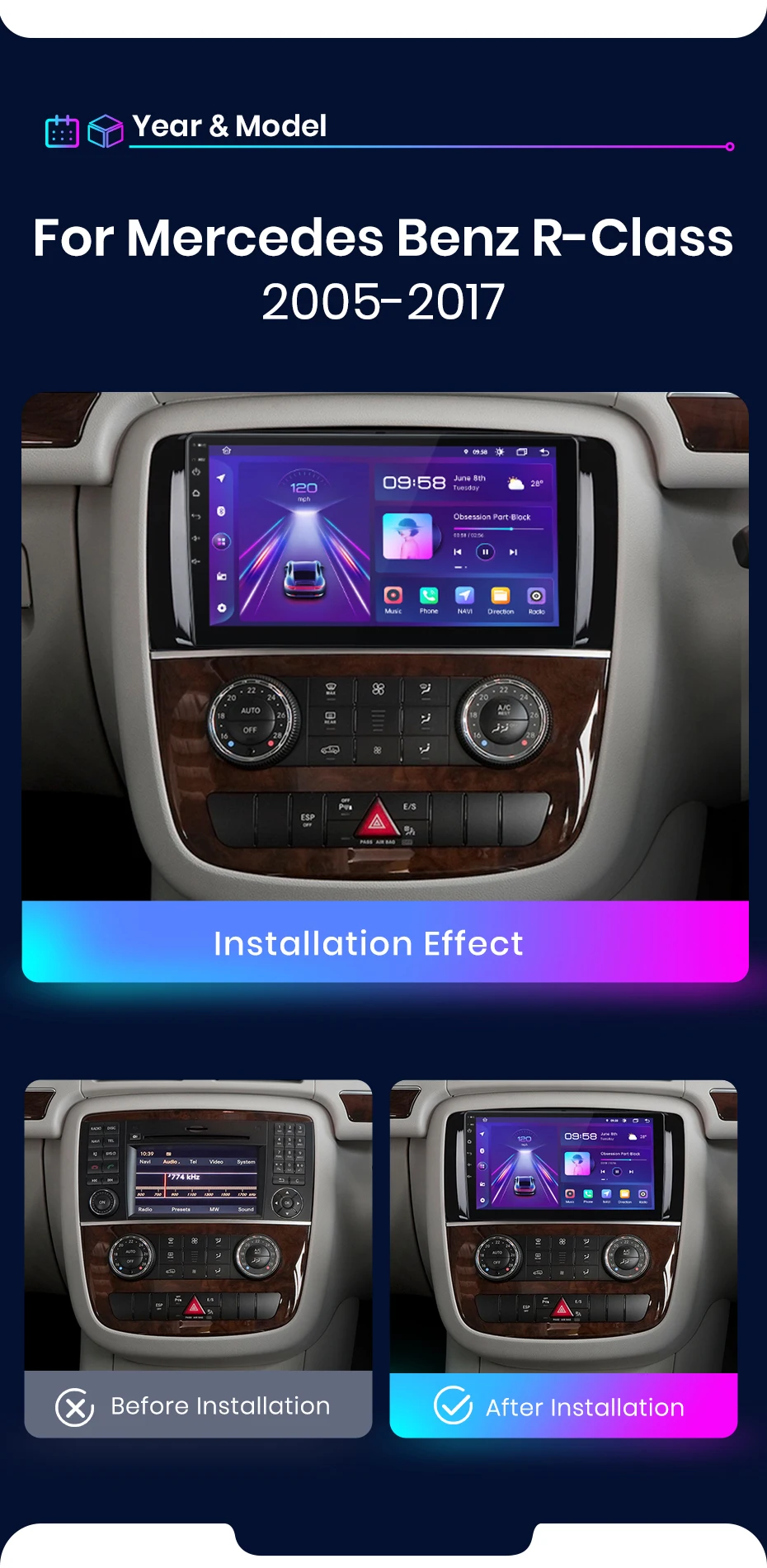
| Original radar displanning | Support for Mercades Benz R-Class W251 R300 R280 R320 2005-2017 |
| AV-OUT | Need converter |
| RDS | Support for Mercades Benz R-Class W251 R300 R280 R320 2005-2017 |
| Support for NetFlex | Support apk installation |
| Ship-Free | Within 48 hours business time |
| Working-Free Service | 24H * 7 service supporting |
| Waranty love-Free | 2 Years warranty |
Schreiben Sie die erste Rezension für „Android Autoradio für Mercedes Benz R Klasse 251 R300 R280 R320 2012-2015 GPS Multimedia 8Core CarPlay“
Ähnliche Produkte






Car-Multimedia
DVN-USBG7 USB Buchse Nachrüstung DVN USBG7 für VW Golf7 Passat B8 CC Artean Jetta Beetle
inkl. 19 % MwSt.
zzgl. Versandkosten
Lieferzeit: 2 - 5 Tage
Rezensionen
Es gibt noch keine Rezensionen.